Lorem ipsum dolor sit amet, consectetur adipiscing elit, sed do eiusmod tempor incididunt ut labore et dolore magna aliqua. Ut enim ad minim veniam, quis nostrud exercitation ullamco laboris nisi ut aliquip ex ea commodo consequat. Duis aute irure dolor in reprehenderit in voluptate velit esse cillum dolore eu fugiat nulla pariatur.
MiFID II and FCA call recording: compliance for voice transcription in finance
TL;DR: Financial firms operating under MiFID II and FCA jurisdictions must maintain searchable, high-accuracy records of all client-related voice communications, including remote and mobile calls under FCA Market Watch 66. Engineering and product teams building for these obligations typically implement dedicated cloud infrastructure with defined data residency, controls that prevent customer audio from being used to retrain models on Growth and Enterprise plans, and transcription accurate enough that the resulting records hold up under regulatory review. Transcription and speaker attribution errors are not product quality issues in this context. They are audit trail failures, and regulators treat them as such.
Why speech-to-text accuracy matters upstream of your LLM
TL;DR: Downstream LLM performance is ceiling-bounded by upstream transcription accuracy. A transcript with a meaningful error rate doesn't produce proportionally degraded summaries or CRM entries. It produces outputs where hallucinated names, inverted logic, and misattributed speaker turns compound silently into every downstream system that reads them. Prompt engineering cannot recover information the STT layer never captured. Gravite cut call quality review time by 93%, from 15 minutes to 1 minute per call, once transcript accuracy was high enough to trust the output without manual verification.
TL;DR: Telephony audio is constrained to 8kHz narrowband frequencies, stripping away the high-frequency spectral energy that generic 16kHz STT models require. Standard upsampling cannot recover phonemes that were never captured at the source, leading to transcription errors that compound silently into downstream NLU failures. Solaria-3 ranks #1 on Switchboard, the most challenging conversational telephony dataset, ahead of AssemblyAI, ElevenLabs, Deepgram, Mistral, and Speechmatics, ensuring your downstream LLM pipelines receive clean, structured data from real-world noisy call audio.
Custom vocabulary vs. custom spelling: which one to choose for better transcripts
Published on May 18
Emma Genthon
Even the most advanced speech-to-text systems make mistakes when they hit brand names, technical acronyms, or non-standard pronunciations. For call centers and customer service platforms, these aren't minor glitches: they break workflows, misrepresent customer needs, and erode trust on both ends of the call.
Gladia gives you two tools for fixing this: custom vocabulary and custom spelling. They look similar on the surface, but they solve different problems. In this article, we will walk you through both so that you can make more informed decisions for your workflow.
TL;DR
Custom vocabulary uses phoneme similarity (fuzzy matching) to catch words the engine mishears. It's deterministic, but only effective when tuned.
Custom spelling is exact text replacement for words the engine recognizes but misspells.
The two are complementary, not interchangeable. Vocabulary catches what the engine got wrong at the sound level; spelling fixes what it got wrong at the character level. Picking the wrong one creates new problems.
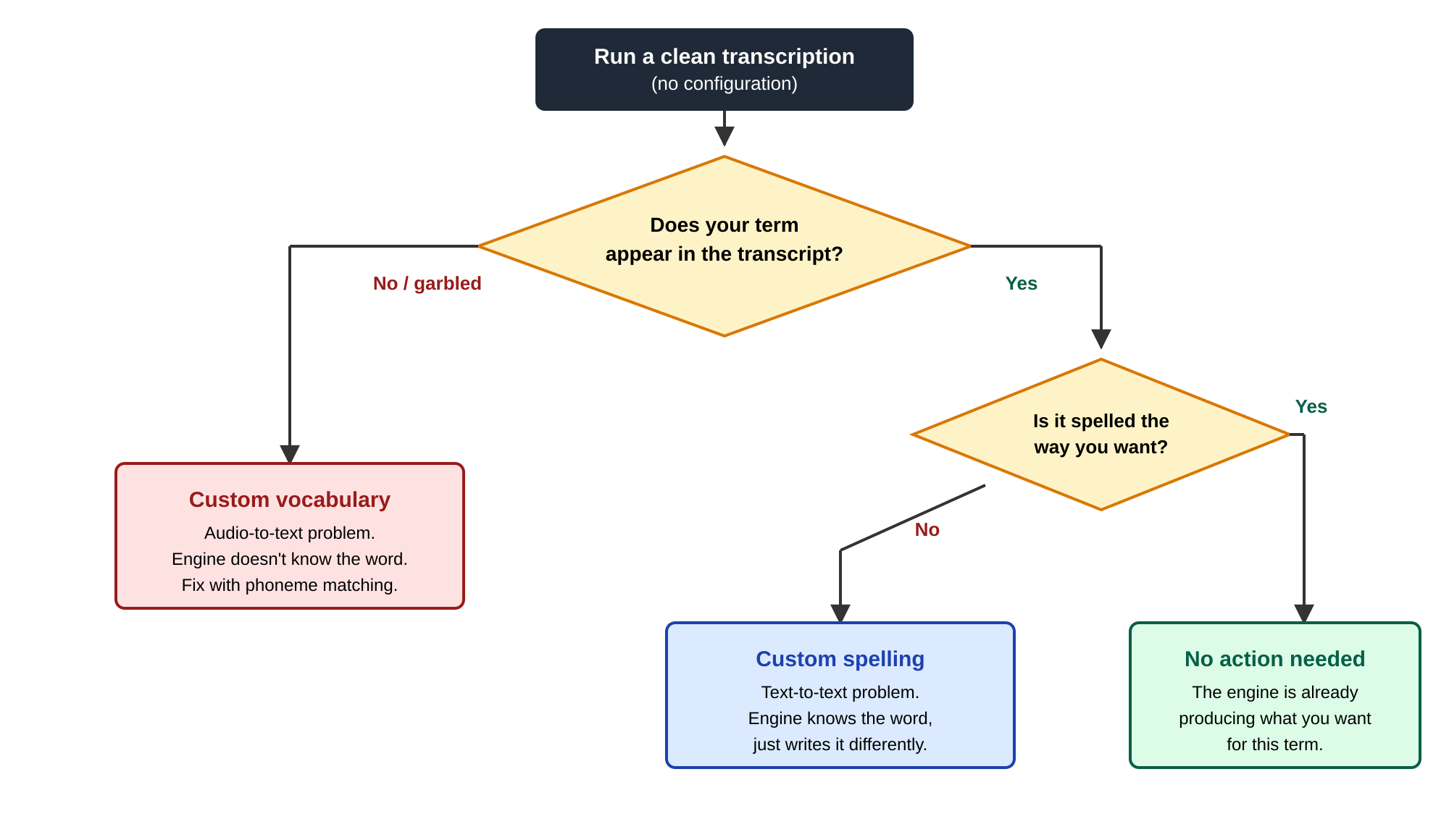
Run a clean transcription before configuring anything. The raw output tells you which tool applies.
Why STT engines get specific words wrong
A speech recognition model transcribes sound by predicting text from the vocabulary it acquired during training. Some words will be underrepresented in that vocabulary, others will be pronounced in ways the model didn't expect, and some will be rendered in a format that doesn't match what you want. Custom vocabulary and custom spelling are the two post-processing features that correct for this. In practice, errors fall into three patterns.
Unknown words: If a term wasn't in the training data in any meaningful volume, the engine has no representation for it and substitutes the closest thing it does know. This is the default failure mode for most B2B vocabulary: brand names, internal product names, and anything coined in the last year or two.
Pronunciation mismatch: The word exists in the model's vocabulary, but the speaker's accent or delivery doesn't match the acoustic pattern the model learned. Most STT systems are trained on a narrow band of "standard" pronunciations, usually American or British English. The word is known, the path from sound to text just takes a wrong turn.
Wrong rendering: The engine identifies the word correctly but writes it in a form you don't want. "Data Science" comes out as "data science." A name spelled "Gorish" comes out as the more common "Gaurish." The audio side worked; the output just doesn't match your house style.
The reason this taxonomy is useful is that the first two are audio-to-text problems and the third is a text-to-text problem. They look identical when you're skimming a transcript, but they need completely different interventions. Trying to fix a rendering problem with a phoneme-based tool is overkill and risks introducing new errors. Trying to fix an unknown-word problem with a text-replacement tool simply won't work, because the right text never appears in the transcript to begin with.
When transcription accuracy is worth engineering against
Of course, not every transcription error justifies engineering time. A misspelling in a casual meeting summary rarely does. But there's a class of use cases where accuracy on specific terms is the whole product:
QA and compliance: If your scoring rubric checks whether the agent said a required disclosure verbatim, one wrong word breaks the rubric and the audit trail.
Healthcare and life sciences: Drug names, procedure codes, and clinical terms have precision requirements that don't tolerate phonetic guessing.
Financial services: Tickers, fund names, and regulatory acronyms (KYC, AML, MiFID) have to be exact for downstream systems to route them correctly.
Voice analytics: Every layer on top of speech (sentiment, topic detection, keyword spotting, automated tagging) silently degrades when key terms are wrong.
If your use case is on this list, the few minutes spent configuring vocabulary and spelling pay back across every transcription you ever run.
Custom vocabulary vs. custom spelling
Most people learn about custom vocabulary and assume it handles all transcription corrections. It doesn't.
Custom Vocabulary vs Custom Spelling
Custom vocabulary
Custom spelling
What it fixes
Words the engine gets completely wrong or garbles at the sound level
Words the engine recognizes but writes differently than you want
How it works
Converts speech and your word list into phonemes, then finds fuzzy matches
Finds exact text strings in the transcript and replaces them
Mechanism
Deterministic fuzzy matching: phoneme similarity with a tunable threshold
Deterministic exact-match replacement: it either matches the string or it doesn’t
Risk
Can produce false positives: unrelated words that share phonemes with a target term may get replaced
No false positives, but misses any spelling variant you didn’t explicitly list
Tuning needed
Yes. pronunciations should list alternate ways the word might sound; intensity controls aggressiveness (0.4–0.6 recommended to avoid false positives)
Yes, but differently. You have to enumerate every misspelling variant you want caught (e.g. for “Levain”: “Levin”, “le vin”, “levine”, “levvin”, “leuvain”, “leuvin”...)
A simple way to decide
Run a transcription with nothing configured. Then walk every term that matters through this:
Decision tree: pick the tool based on what the raw transcript actually produced.
Two concrete examples make the split obvious. "Gaurish" → "Gorish" is a custom-spelling job: the engine heard the name and wrote it in the more common form. "data-science" → "Data Science" is the same: the word is there, the formatting isn't what you want. By contrast, if your software is called "Qortex" and the transcript reads "cortex," the engine never produced the right text in the first place. There's nothing to find-and-replace, and you need custom vocabulary to push it toward the right phoneme match.
Under the hood: how phoneme matching makes the decision
Custom vocabulary in Gladia is not a simple search-and-replace. It operates at the text level using phoneme similarity: once a transcription is generated, Gladia converts both the transcribed words and your vocabulary entries into phonemes, then compares them. When the similarity score crosses a threshold, the word gets replaced with your term.
This is deterministic, not probabilistic. Same audio plus the same configuration always yields the same output. Under the hood, eSpeak performs rule-based grapheme-to-phoneme conversion, and Levenshtein ratio computes a fixed similarity score between phoneme sequences. The intensity setting is a threshold on that score: above it, the replacement happens; below it, it doesn't. There's no randomness in the loop. What the tool gives you is approximate matching with tunable strictness, which is powerful but only if you configure it correctly. Five things happen under the hood:
Phoneme normalization: Both the transcribed text and your vocabulary entries are converted into phonemes (sound units) using eSpeak's rule-based G2P, so the engine can catch words that sound like something in your list even when the base STT produced a different spelling.
Subset matching: The transcript is broken into overlapping chunks of words, then compared against your vocabulary list. This makes it possible to match short phrases, not just individual words.
Multiple pronunciation comparisons: For each vocabulary entry, the engine generates several phonetic representations to account for accent and speaker variation. Each is compared separately, improving the chances of a match in difficult audio conditions.
Smart subset sizing: The comparison window is sized based on the longest term in your vocabulary list (roughly 1.5 times that length), so longer phrases aren't missed because the system looked at too small a portion of the transcript.
Similarity scoring and threshold decision: Phoneme sequences are scored using a Levenshtein-based similarity ratio. When multiple entries could match a segment, the highest-scoring one wins, provided it clears the intensity threshold.
The four parameters that control behavior
Each vocabulary entry can take up to four fields. One controls what gets written into the transcript, one helps the engine find the word in the first place, and two control how aggressively the match is enforced. Knowing which knob does which job is the difference between a vocabulary list that quietly works and one that has to be constantly retuned.
value (required): what the transcript will say. The exact text that will appear in the final transcript when a phoneme match is found. Case-sensitive; it appears exactly as written.
pronunciations: how to help the engine recognize the word. Plain-text alternative spellings that reflect how the word sounds when spoken. These are not phonetic notation: just write the word the way someone might naively spell it based on sound. Gladia runs them through the same phonemizer as the transcript, so what matters is whether your spelling produces the right phoneme sequence, not whether it looks "phonetic." For "Levain," entries like "le vin" or "levin" both phonemize to roughly /ˈlɛvɪn/, which is what the engine is likely hearing from a non-French speaker. Listing both widens the net.
If your term is "Nietzsche," you might add ["Niche", "Neechee"] as pronunciations. If speakers say "Q-Bee" but you want "Qbii Technologies," list "Q-Bee" under pronunciations. This widens the phoneme net without raising the global intensity, which keeps false positives under control.
intensity (per-entry): how aggressively this entry replaces matches. A value from 0 to 1. Higher intensity means more replacements but more risk of unwanted swaps. Lower intensity requires a closer match. When not set, the entry inherits default_intensity.
language: which language's pronunciation rules to use. Defaults to the transcription language. This matters when a word from one language appears in a conversation held in another — for example, the English brand name "Salesforce" spoken in a French meeting. Setting language: "en" ensures English pronunciation rules are used, not French ones.
default_intensity vs. per-entry intensity
These two settings are easy to confuse, partly because they share a name and partly because they do the same job at different scopes. Think of them as a global dial and a per-word override: default_intensity sets the baseline aggressiveness for every entry in your list, and per-entry , lets you turn that dial up or down for one word at a time without affecting the rest. The override always wins where it's set; the default fills in everywhere else.
In practice this gives you a useful pattern. Set default_intensity to 0.4 so most of your list gets a sensible middle setting, then push individual entries off the baseline only where they cause trouble. Short or common-sounding brand names ("Zoom," "Target") share phonemes with too many ordinary words, so dropping them to 0.2–0.3 stops them from over-matching. Rare, unusual-sounding terms can sit at the default or higher because there's nothing in normal speech for them to collide with.
Tuning tip → The factory default is 0.5, but Gladia's documentation recommends starting at 0.4. Raise it only if your terms still aren't being picked up. Lower it (or lower individual entries) if you're seeing false positives.
How to configure three entries the right way
The configuration below packs three patterns into one vocabulary list, and they're ordered deliberately. Each entry adds more configuration than the one before it, and each addition exists for a specific reason.
Start with the string shorthand when defaults are fine. "Gladia" is the minimum-effort form: one string, no fields, inherits everything from default_intensity. Use it when a brand or product name just needs to be recognized and the engine isn't doing anything weird with it yet.
Move to the object form when you might want to tune later. { "value": "Solaria" } is functionally identical to the string shorthand, but the object structure means you can add pronunciations or override intensity later without rewriting the entry. It's a small investment that pays back the first time the term causes a problem.
Go full configuration when a term really matters. "Salesforce" uses all four fields because it earns them. It's an English brand name that may appear in non-English conversations, so language: "en" forces English phoneme rules. It has known mispronunciations worth catching, so pronunciations widens the phoneme net. And it gets a higher intensity than the global default because missing it would be more costly than the false-positive risk. This is the pattern to copy for any term where accuracy is non-negotiable.
When custom vocabulary creates false positives
Because custom vocabulary matches on phoneme similarity rather than exact text, it can replace words you didn't intend. A short brand name like "Zoom" or "Target" shares phonemes with a lot of common words. The risk also scales: every transcribed word is compared against every entry, so a list of 50+ terms will produce more unintended replacements than a list of five. Three remedies:
Lower the intensity for the specific entry causing problems, without touching the global default_intensity.
Add pronunciations to anchor the phoneme match closer to what speakers actually say.
Move the entry to custom spelling if the engine already produces something close enough to match by text. This is the cleanest fix: exact match, no side effects, no tuning.
Moving problematic entries from custom vocabulary to custom spelling is the most common migration path in Gladia's documentation. However, it comes with its own discipline, which is the next thing to understand.
Custom spelling: deterministic, but only as good as your variant list
Custom spelling doesn't phonemize anything. It looks for exact text strings in the transcript and replaces them. That makes it completely safe from false positives but it also means it will quietly miss anything you didn't explicitly list.
The example to internalize: suppose you want the bakery name "Levain" in your transcripts. Depending on the speaker's accent and the engine's guess, the raw transcript might say "Levin," "le vin," "levine," "levvin," "leuvain," or "leuvin." Custom vocabulary would catch most of these in one shot because they all phonemize to something close to /ˈlɛvɪn/. Custom spelling, by contrast, only catches the variants you list. Miss one and that transcript ships uncorrected.
In practice, when you move an entry from vocabulary to spelling, do it after you've seen enough transcripts to know what variants actually show up. The first pass of custom spelling should be informed by real data, not your guess at how speakers might mangle the word.
Putting it together: a working configuration loop
Everything above is more useful as a process than as a checklist. The steps below assume you'll run them more than once: the first pass identifies the errors, the second confirms the fixes worked, and the third cleans up the false positives the second pass introduced. Three passes is normal. Two is lucky. One almost never happens.
Run a transcription without any custom vocabulary. Identify which words are wrong.
Sort the errors into two buckets: garbled or wrong → custom vocabulary; recognizable but misspelled → custom spelling.
Add custom vocabulary entries with default_intensity set to 0.4.
Run again. Check whether your terms are now appearing correctly.
Scan for false positives. If you spot any: lower the entry's intensity, add pronunciations, or move it to custom spelling if the model already gets close.
Iterate. Tuning is normal: don't expect to get it perfect on the first pass.
Why platforms expose vocabulary controls to their end customers
For a CCaaS or voice-AI platform reselling transcription, vocabulary configuration is a feature surface. The teams that ship it well unlock a few things at once.
Domain accuracy that scales without per-customer engineering. An insurance customer's vocabulary list and a hospital's vocabulary list have almost no overlap. Letting customers manage their own lists means their transcripts get more accurate every time they add a term, with no work from the platform.
Downstream features that stop silently breaking. Call summaries, CRM notes, sentiment analysis, automated QA — all of them depend on accurate transcription at the source. Vocabulary controls let customers fix the input layer, which compounds across every feature built on top of it.
Clean data for the AI layer. Anything that uses transcripts as training or inference input (agent assistants, conversational analytics, in-call coaching) gets better when the transcripts they consume are accurate on the terms that matter most.
The mistake most teams make
Almost every team that struggles with these features made the same mistake: they reached for custom vocabulary first. It's the more powerful-sounding feature, and it's the one with more parameters to configure, so it feels like the serious tool. But for a large fraction of real-world transcription errors (proper nouns the engine almost gets right, formatting the engine renders its own way, names that come through phonetically reasonable but stylistically wrong) custom spelling is the better answer. It's deterministic, has no false positives, and needs no tuning.
The teams that get clean transcripts aren't the ones with the longest vocabulary lists. They're the ones who diagnosed each error before configuring anything, and who moved entries to custom spelling the moment the engine started producing something close enough to match by text. That habit is worth more than any single parameter.
FAQs
What's the difference between custom vocabulary and custom spelling?
Custom vocabulary fixes words the engine mishears at the sound level using fuzzy phoneme matching, while custom spelling fixes words the engine hears correctly but writes wrong using exact text replacement. Both are deterministic, but vocabulary risks false positives on similar-sounding words, and spelling misses any variant you didn't explicitly list.
When should I use custom spelling instead of custom vocabulary?
Whenever the engine already produces the right word but writes it in a form you don't want: "Gaurish" instead of "Gorish," or "data science" instead of "Data Science." If the correct text is recoverable by find-and-replace, custom spelling is safer: no false positives, no tuning.
When should I use custom vocabulary?
When the engine doesn't produce the correct word at all. It's garbled, missing, or substituted with something acoustically similar. If your product is "Qortex" and the transcript reads "cortex," there's nothing to find-and-replace; you need phoneme matching to push the engine toward the right output.
What's the difference between default_intensity and per-entry intensity?
Same dial, different scope. default_intensity sets the baseline for every entry; per-entry intensity overrides it for one word. The override wins where set; the default fills in everywhere else.
What intensity should I start with?
0.4. The factory default is 0.5, but Gladia recommends 0.4. Raise it if terms aren't being picked up, lower it if you're seeing false positives.
How do I fix false positives in custom vocabulary?
Three options: lower the entry's intensity without touching the global default, add pronunciations to narrow the match, or move the entry to custom spelling if the engine already produces something close enough. The third is the cleanest, deterministic and tuning-free.
How should I decide between the two tools?
Run a clean transcription first. If the term appears garbled or wrong, use custom vocabulary. If it appears but is spelled wrong, use custom spelling. If it appears correctly, do nothing. The raw transcript tells you which tool applies.
Contact us
Your request has been registered
A problem occurred while submitting the form.
Read more
Speech-To-Text
MiFID II and FCA call recording: compliance for voice transcription in finance
Speech-To-Text
Why speech-to-text accuracy matters upstream of your LLM